Steuereinstellungen
Die Steuereinstellungen steuern, wie Steuern im POS berechnet und angezeigt werden.
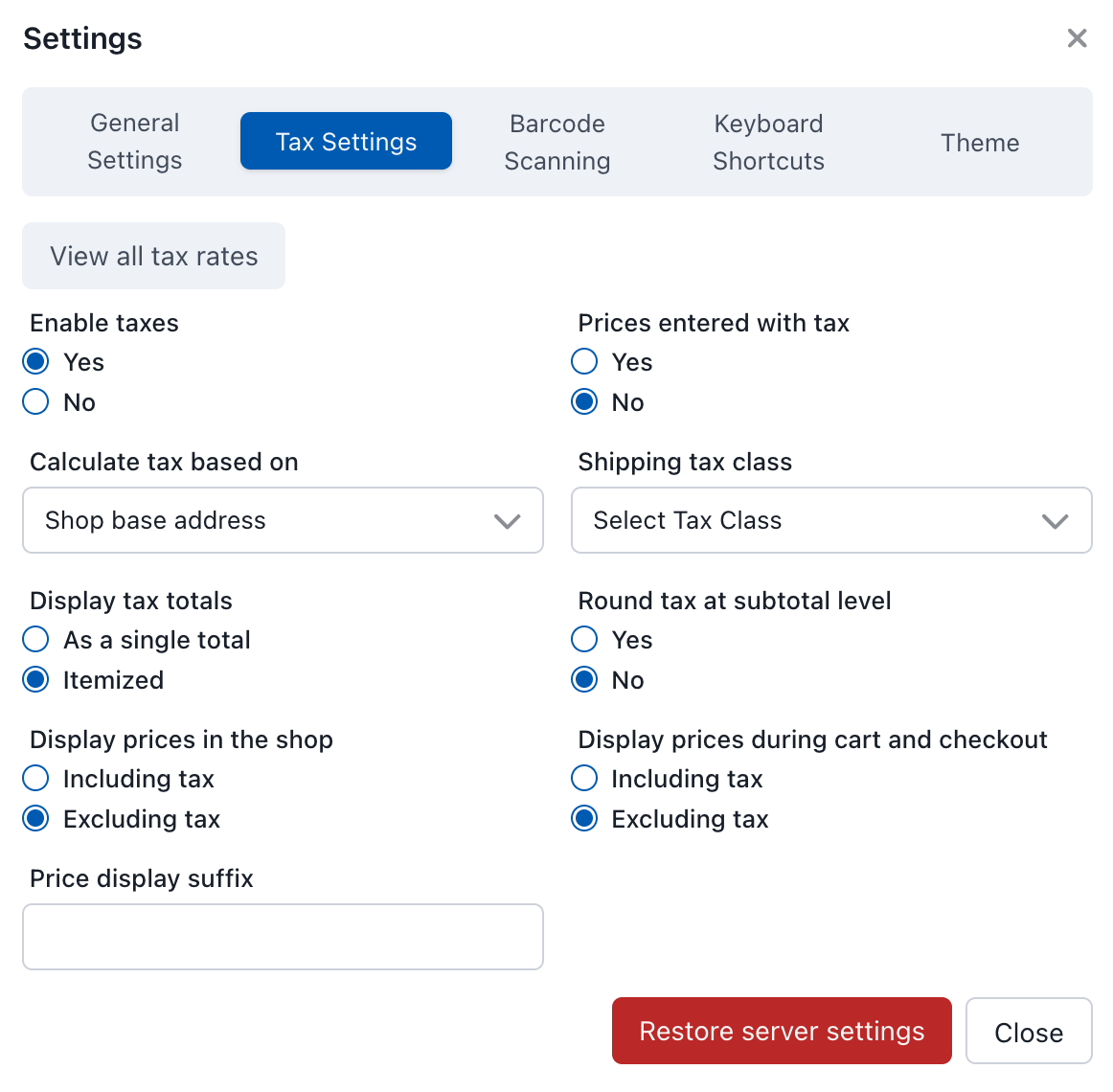
Tax Settings
Beim ersten Laden übernimmt das POS die Standard-Steuereinstellungen von WooCommerce. Im Allgemeinen sollten die gleichen Einstellungen wie in WooCommerce beibehalten werden, es sei denn, es besteht ein bestimmter Bedarf. Abweichende Steuereinstellungen vom Server führen mit hoher Wahrscheinlichkeit dazu, dass das POS und WooCommerce unterschiedliche Steuerwerte berechnen, was zu Abweichungen und Problemen bei der Bestellsynchronisation führen kann.
Alle Steuersätze anzeigen
Klicken Sie auf die Schaltfläche Alle Steuersätze anzeigen, um alle Steuersätze zu sehen, die in das POS heruntergeladen wurden. Folgendes wird angezeigt:
- Steuersatzbezeichnungen
- Steuersatzprozentsätze
- Anwendbare Regionen/Standorte
Dies ist nützlich, um zu überprüfen, ob die korrekten Steuersätze geladen sind, und um Probleme bei der Steuerberechnung zu debuggen.
Einstellungen zur Steuerberechnung
Preise inkl. Steuer eingegeben
Bestimmt, ob Produktpreise Steuern enthalten:
| Option | Beschreibung |
|---|---|
| Ja | Produktpreise enthalten Steuern. Das POS berechnet die Steuer durch Rückrechnung vom Gesamtpreis |
| Nein | Produktpreise enthalten keine Steuern. Das POS addiert die Steuer auf den eingegebenen Preis |
Steuerberechnung basierend auf
Bestimmt die Adresse, die für die Steuerberechnung verwendet wird:
| Option | Beschreibung |
|---|---|
| Lieferadresse des Kunden | Steuersätze basierend auf dem Versandziel der Bestellung |
| Rechnungsadresse des Kunden | Steuersätze basierend auf der Rechnungsadresse des Kunden |
| Basisadresse des Shops | Steuersätze basierend auf dem physischen Standort der Filiale |
Versandsteuerklasse
Legt fest, wie Versandkosten besteuert werden:
| Option | Beschreibung |
|---|---|
| Versandsteuerklasse basierend auf Warenkorbartikeln | Die Versandsteuer wird anhand der Steuerklasse der Artikel im Warenkorb berechnet |
| Standard | Der Versand wird mit dem Standard-Steuersatz besteuert |
| Ermäßigter Satz | Der Versand wird mit einem ermäßigten Steuersatz besteuert |
| Nullsatz | Auf Versandkosten wird keine Steuer erhoben |
Rundung
| Option | Beschreibung |
|---|---|
| Steuer auf Zwischensummenebene runden | Die Steuer wird für die gesamte Zwischensumme berechnet und dann gerundet, anstatt die Steuer für jeden einzelnen Posten zu runden |
Anzeigeeinstellungen
Preisanzeige im Shop
| Option | Beschreibung |
|---|---|
| Inkl. Steuer | Angezeigte Preise enthalten Steuerbeträge |
| Exkl. Steuer | Angezeigte Preise enthalten keine Steuer |
Preisanzeige im Warenkorb und an der Kasse
| Option | Beschreibung |
|---|---|
| Including tax | Cart and checkout prices include tax |
| Excluding tax | Cart and checkout prices exclude tax |
Price Display Suffix
Text that appears after prices to indicate tax status (e.g., "inc. VAT" or "ex. VAT").
Display Tax Totals
| Option | Beschreibung |
|---|---|
| As a single total | All taxes are combined into one total line |
| Itemized | Each tax rate is shown as a separate line item |
Restore Server Settings
Click to fetch and apply the current WooCommerce tax settings from your server.
WooCommerce is the source of truth for tax settings — the POS should mirror it. Restore Server Settings is the safe way to pull the latest configuration from your store, and is the right action whenever you've changed tax settings in WP Admin > WooCommerce > Settings > Tax and want the POS to pick them up.
The only time to think twice: if you've deliberately overridden a POS-side tax setting to differ from the server (an advanced setup), Restore Server Settings will overwrite that override. If you're not sure whether you've done that, you almost certainly haven't.
Common Issues
POS and WooCommerce Showing Different Totals
The most frequent tax problem is a mismatch between POS tax settings and WooCommerce tax settings. When these diverge, the same order will calculate different totals depending on where it's placed. Always keep POS settings in sync — use Restore Server Settings after changing anything in WP Admin > WooCommerce > Settings > Tax.
Tax-Inclusive Pricing Confusion
If "Prices Entered With Tax" is set to Yes but "Display Prices in the Shop" is set to Excluding tax, the displayed price will be lower than the entered price. This is correct behaviour — the POS is stripping the tax component for display — but it can surprise cashiers if they're expecting to see the sticker price.
Customer Address and Tax Calculation
When "Calculate Tax Based On" is set to Customer shipping address or Customer billing address, the POS needs a valid address to look up the correct rate. If a walk-in customer has no address on file, WCPOS falls back to the shop base address for calculation. This is usually the right behaviour for in-store sales, but if you see unexpected rates for specific customers, check their address details.
Troubleshooting
Tax Amounts Are Incorrect
- Go to Tax Settings in the POS and click Restore Server Settings to pull the latest configuration from WooCommerce.
- Click View all tax rates and confirm the expected rates appear. If rates are missing, check that they're properly configured in
WP Admin > WooCommerce > Settings > Tax > Standard rates. - Verify the product's tax class — products assigned to a "Zero rate" tax class won't have tax applied regardless of settings.
Tax Is Showing as Zero
- Check that tax is enabled in WooCommerce (
WP Admin > WooCommerce > Settings > General > Enable tax rates and calculations). - Use View all tax rates in the POS to confirm rates have been downloaded. If the list is empty, try a full sync.
- Confirm the product's tax status is set to "Taxable" (not "None" or "Shipping only").
Rounding Discrepancies
Small rounding differences (a penny or two) between POS and WooCommerce can occur when "Round tax at subtotal level" is enabled in one system but not the other. Ensure this setting matches in both places.